General scheme
A sign-in starts in your app: it sends the browser to the sign-in page with a standard OpenID Connect redirect. The user confirms in a channel, and the browser returns to your app with a code that your app exchanges for tokens.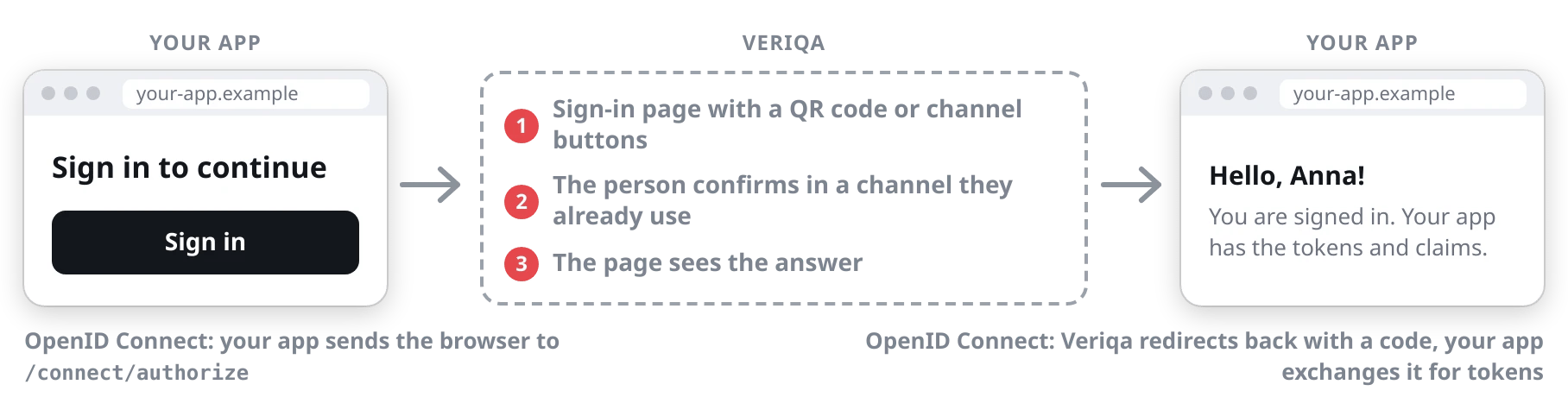
Telegram
Signing in on a computer
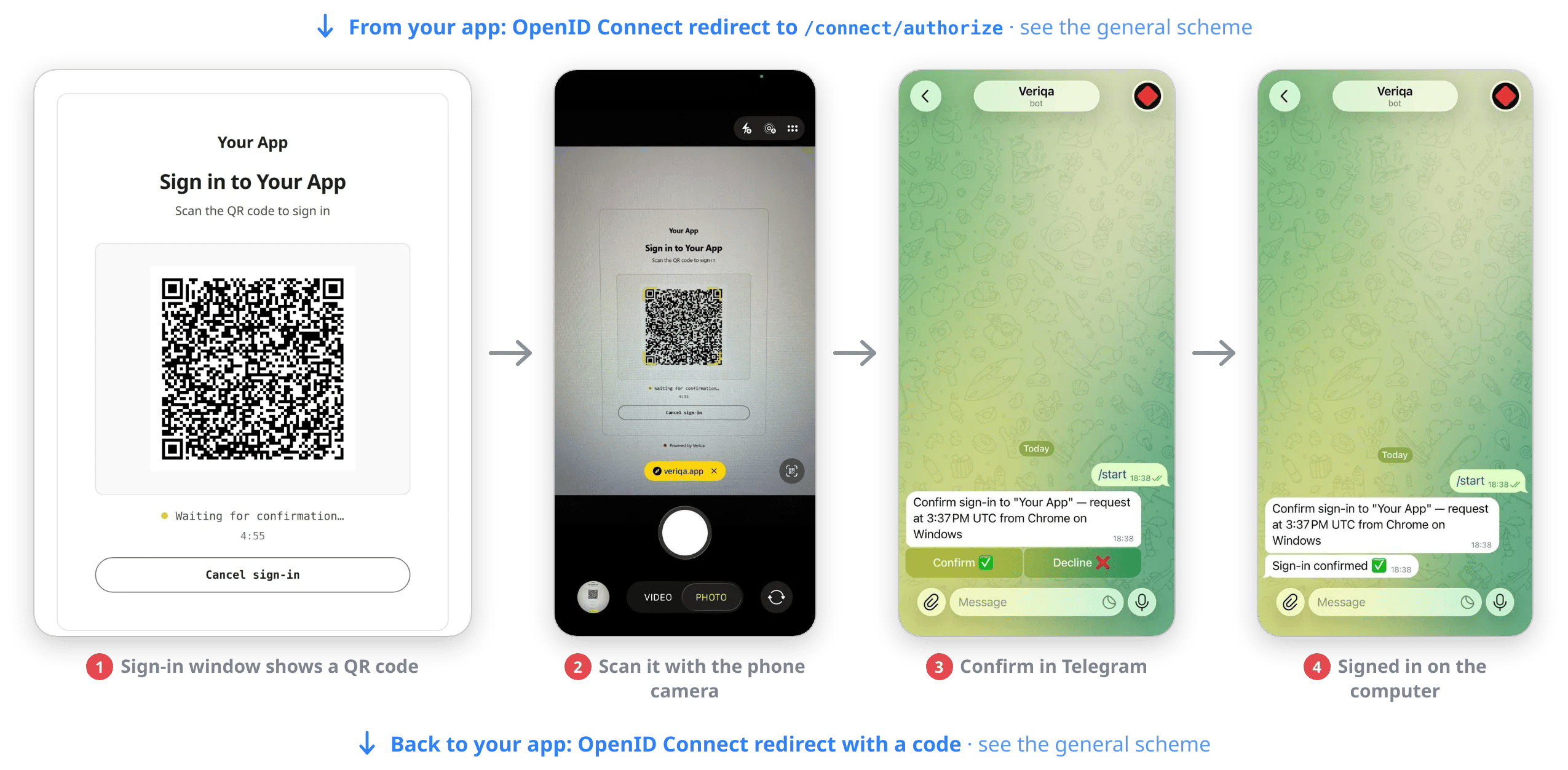
The user scans the QR code with their phone camera and confirms in the Telegram chat.
Signing in on a phone
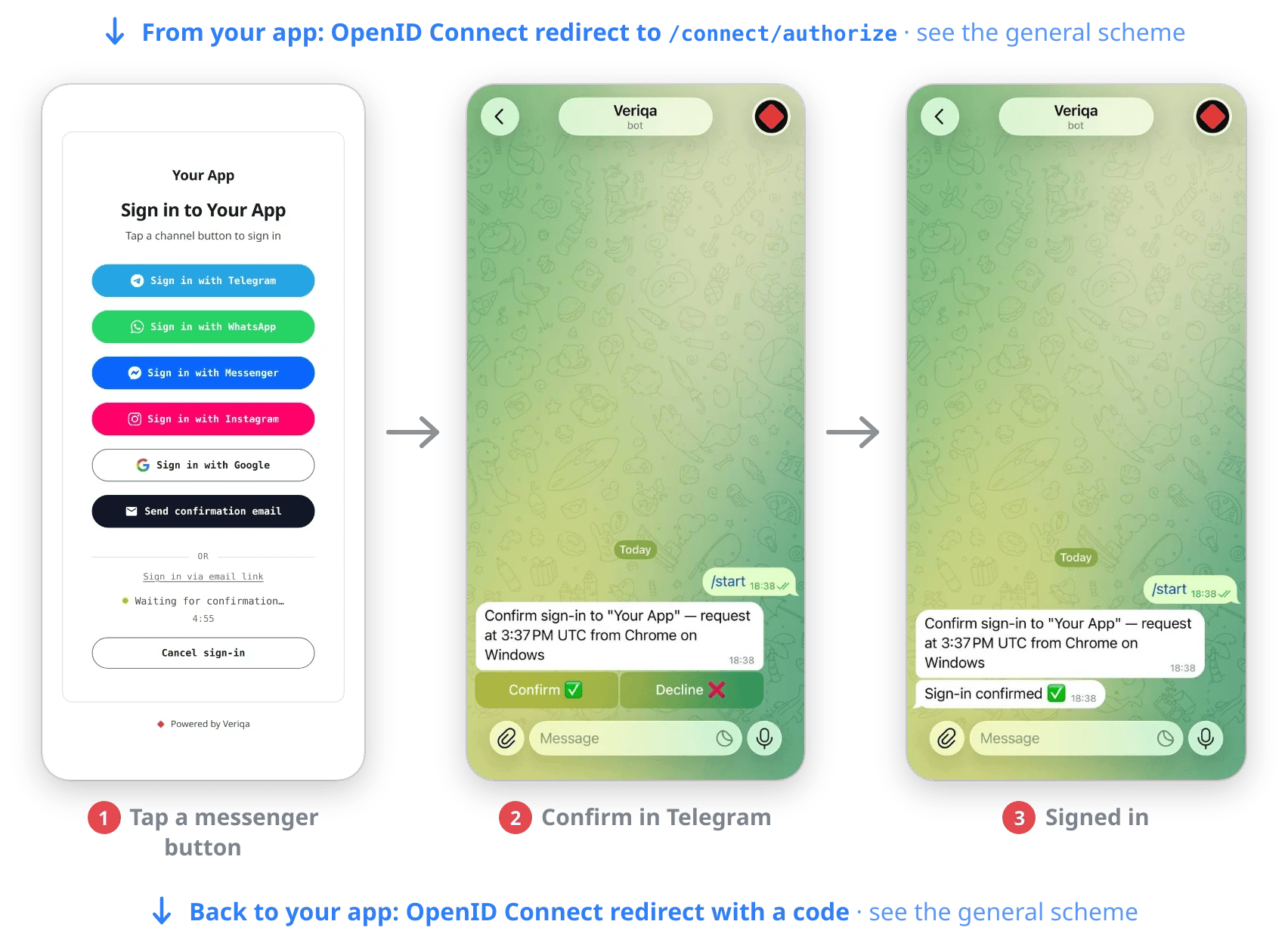
The user taps "Sign in with Telegram" and confirms in the Telegram chat.
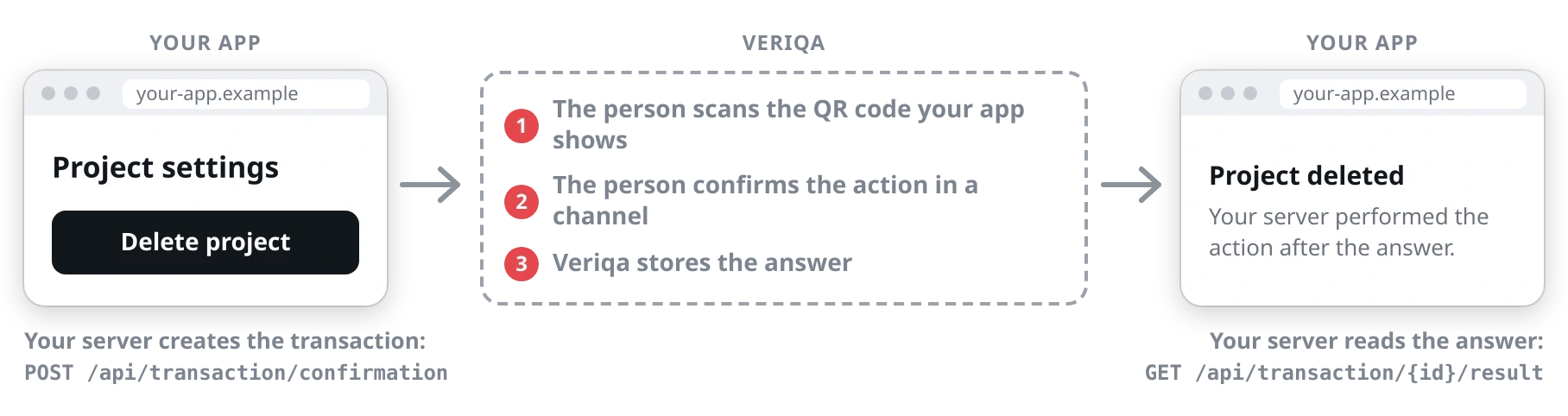
Step-up: confirming an action
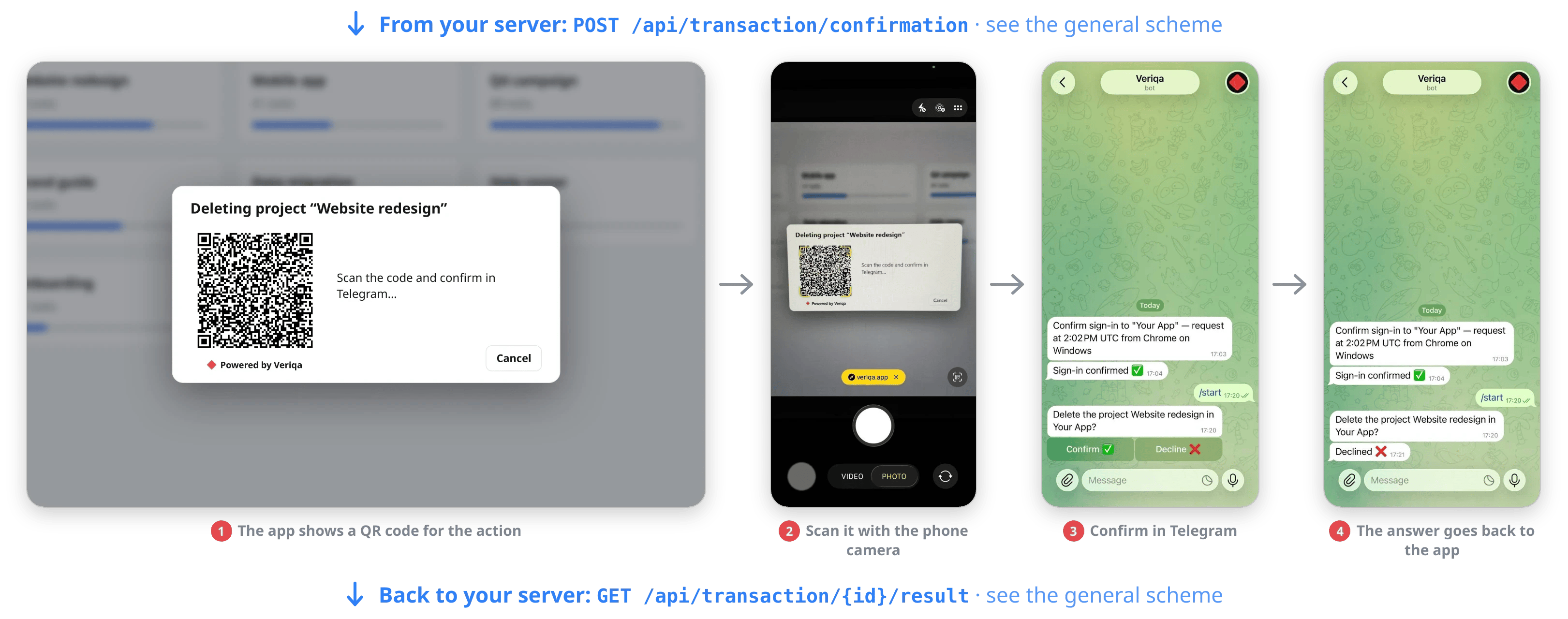
The app shows a QR code, and the user scans it with their phone camera and declines the request in Telegram. The app receives the answer.
Collecting extra details at sign-in
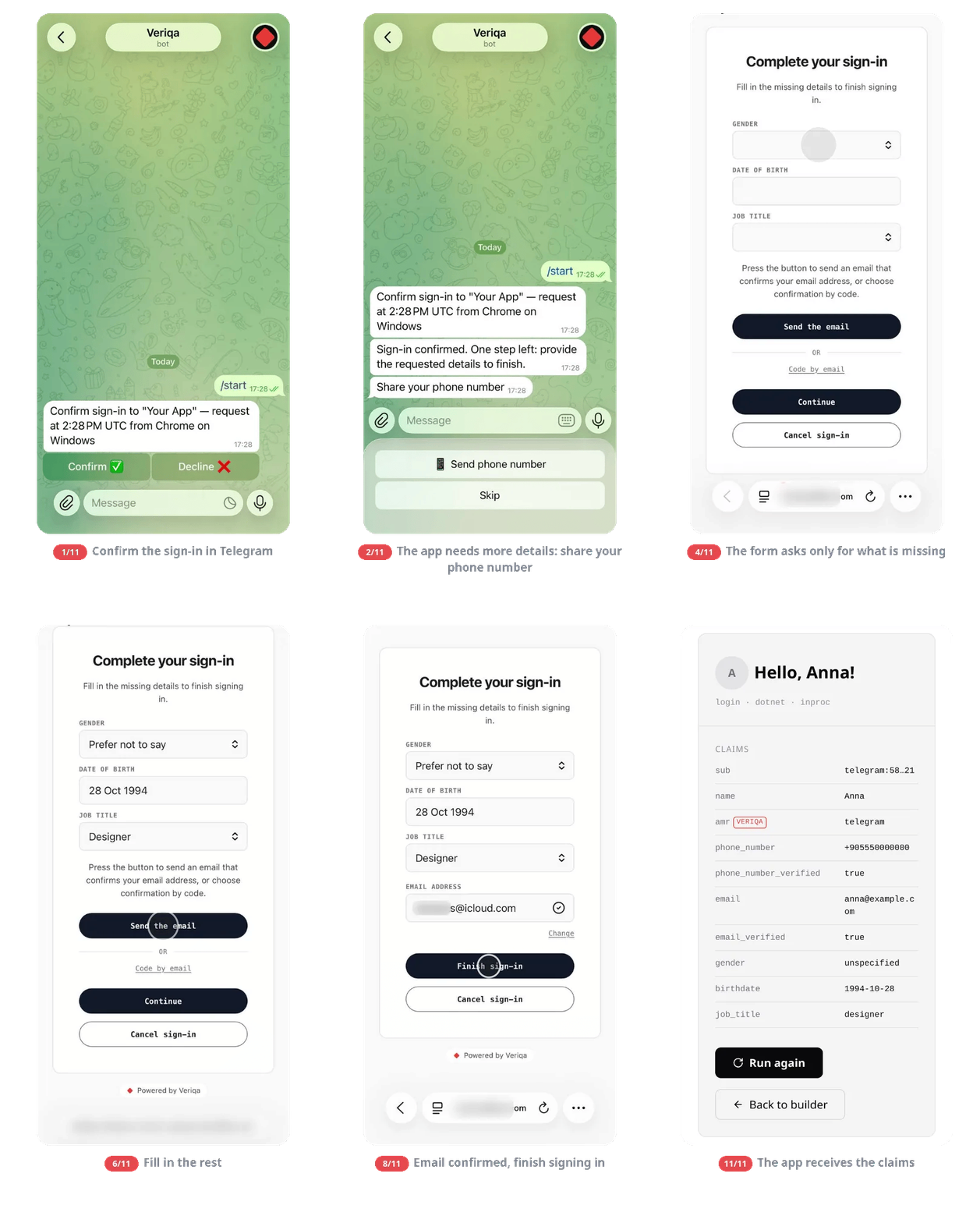
At sign-in, your app gets what the messaging app doesn't provide: a phone number, answers to a short form and a confirmed email address.
Claims your app can get
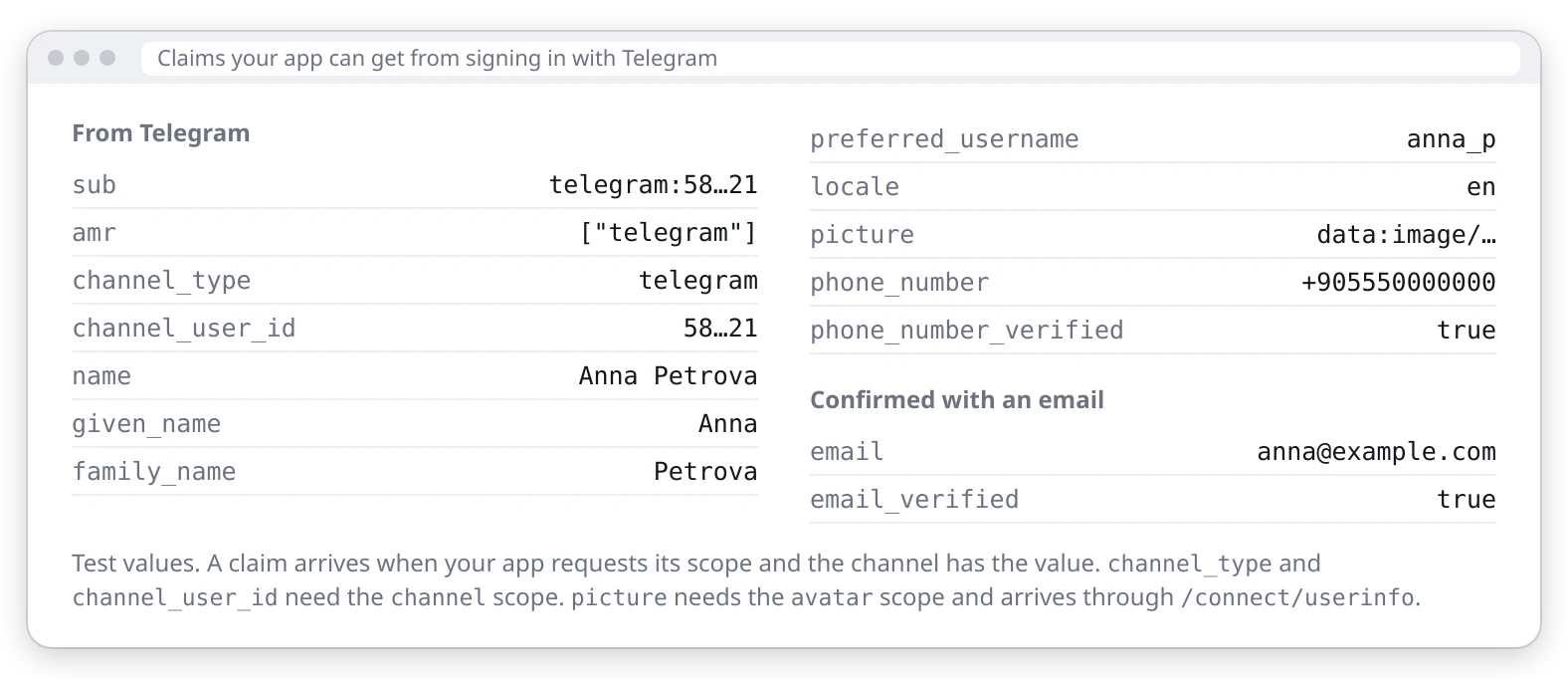
Signing in on a computer
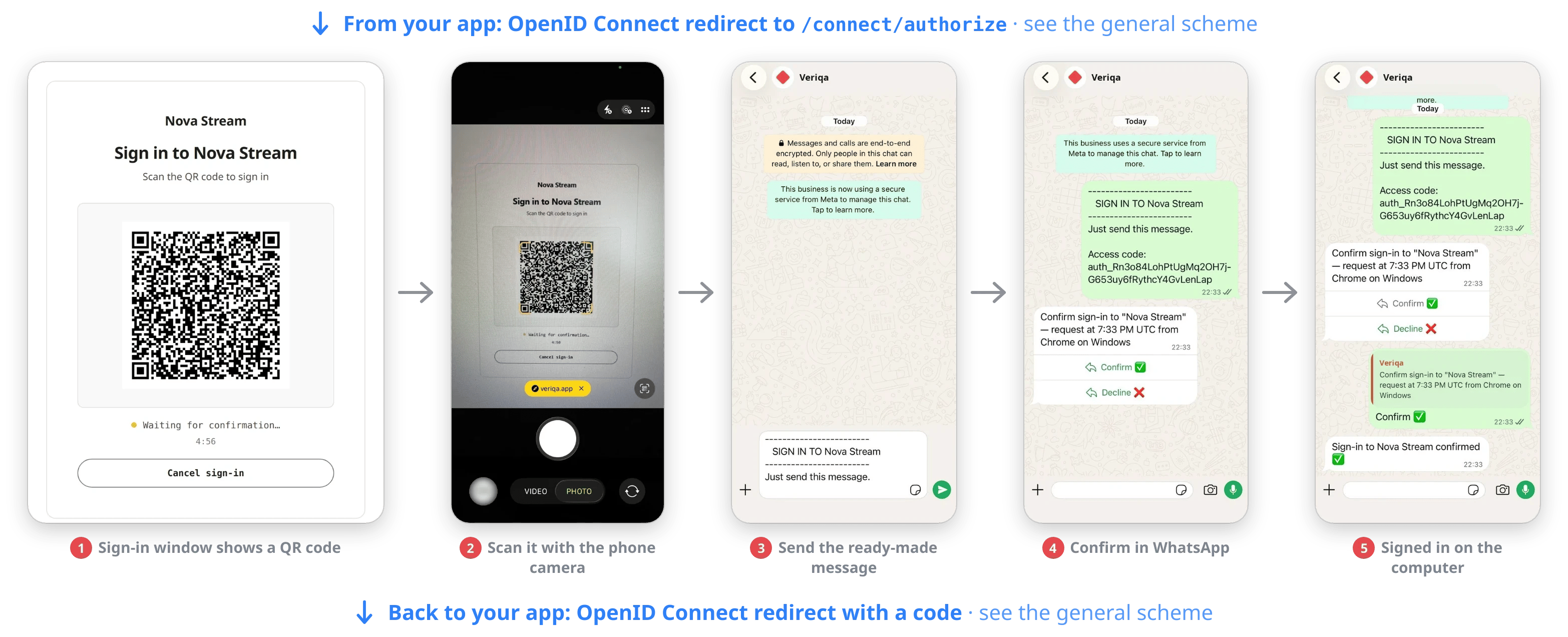
The user scans the QR code with their phone camera, sends the ready-made message in WhatsApp and taps Confirm.
Signing in on a phone
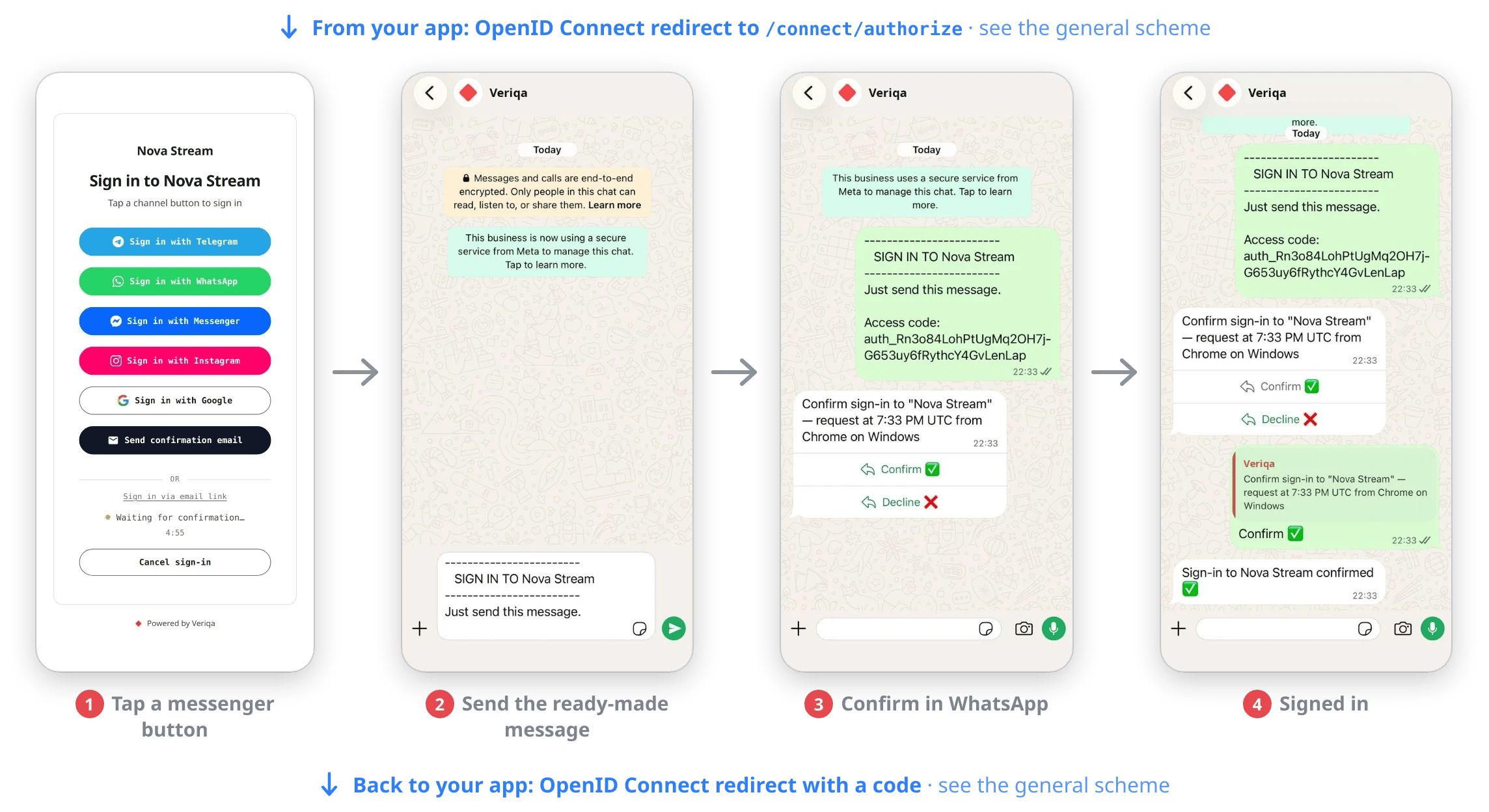
The user taps "Sign in with WhatsApp", sends the ready-made message and taps Confirm.
Step-up: confirming an action
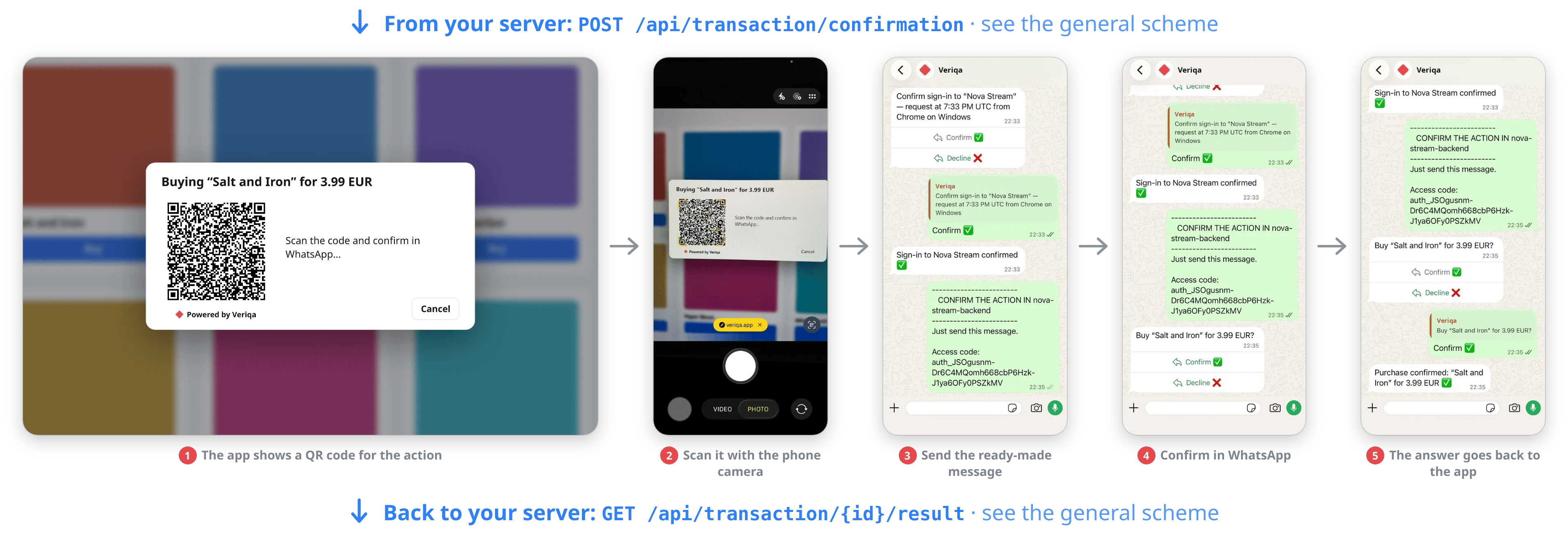
The app shows a QR code, and the user scans it with their phone camera, sends the ready-made message in WhatsApp and taps Confirm.
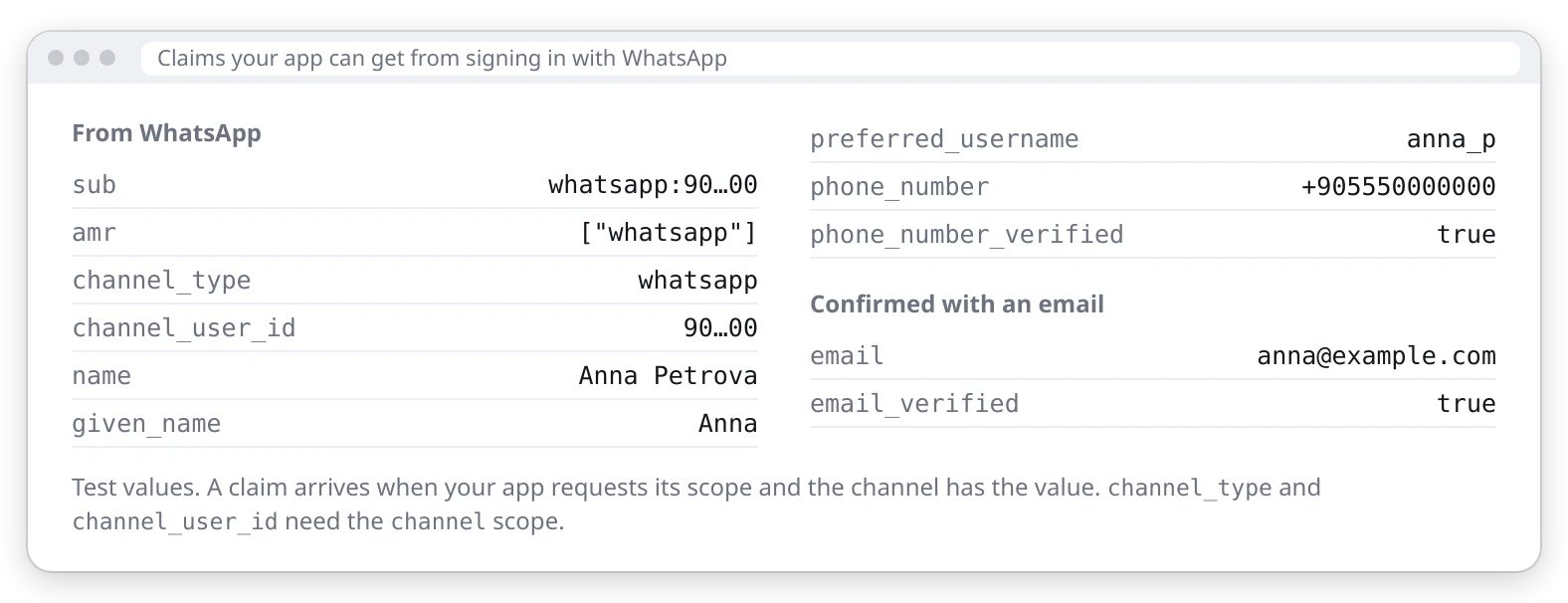
Claims your app can get
Messenger
Signing in on a computer
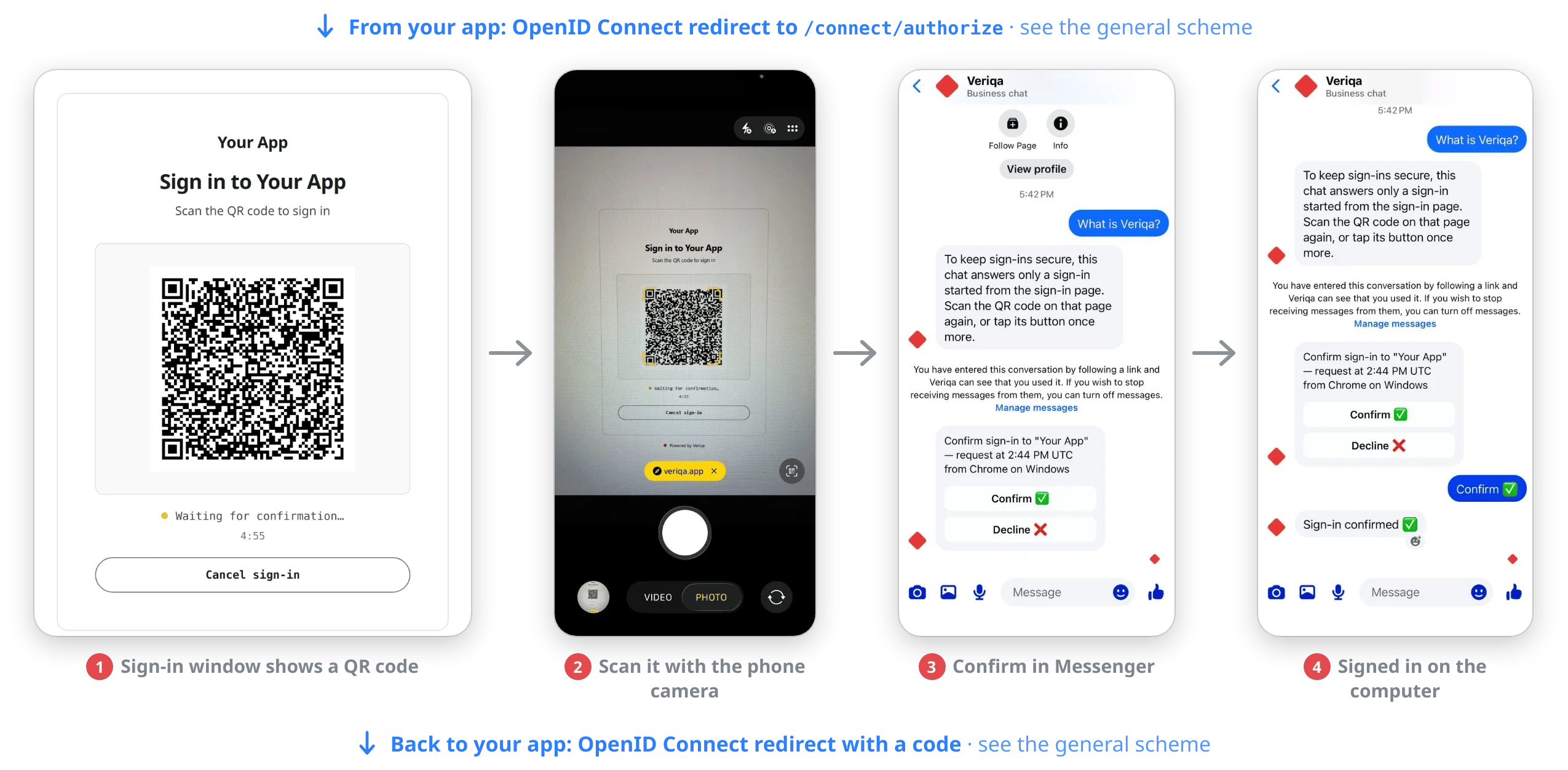
The user scans the QR code with their phone camera and confirms in the Messenger chat.
Signing in on a phone
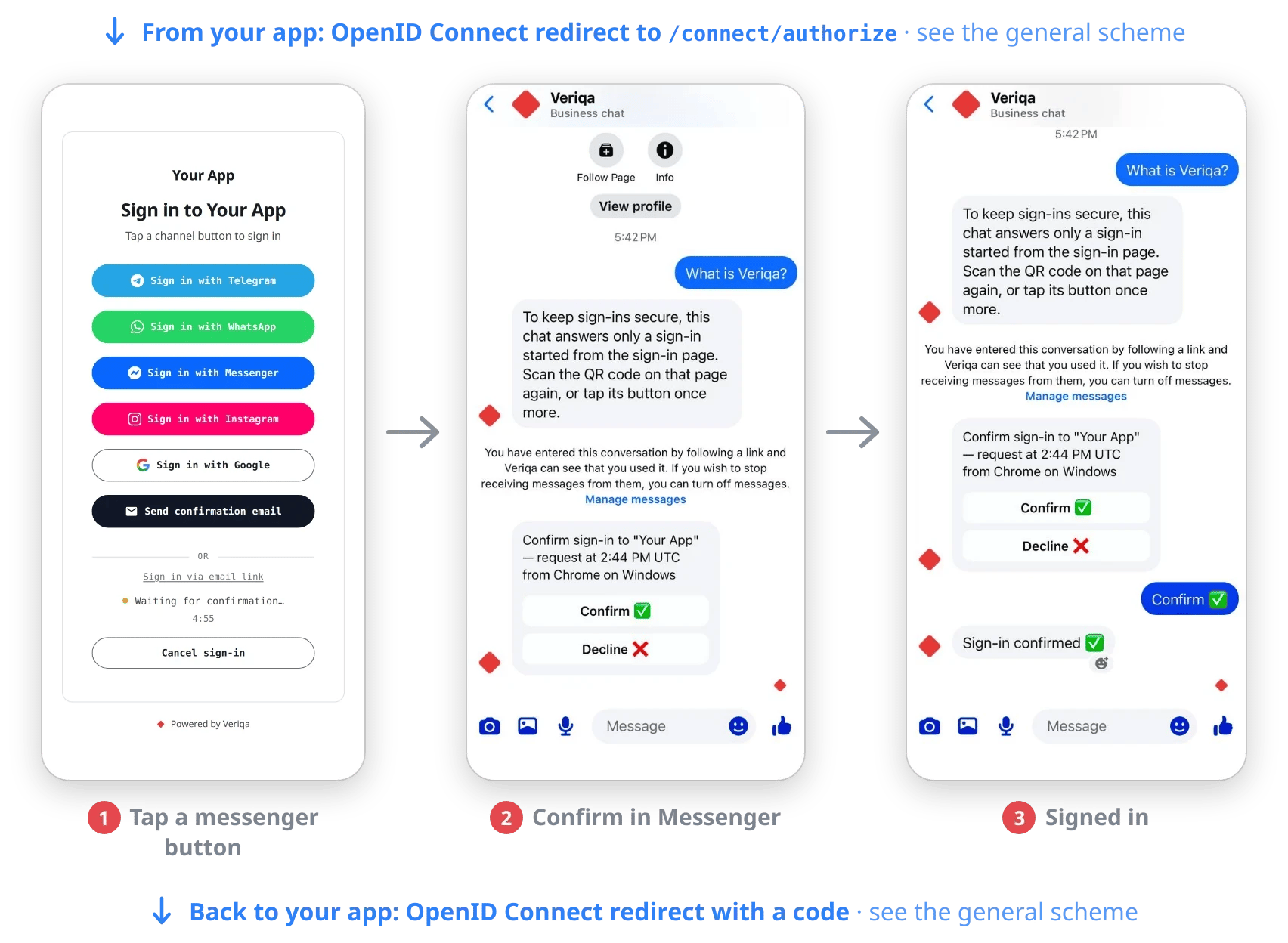
The user taps "Sign in with Messenger" and confirms in the Messenger chat.
Step-up: confirming an action
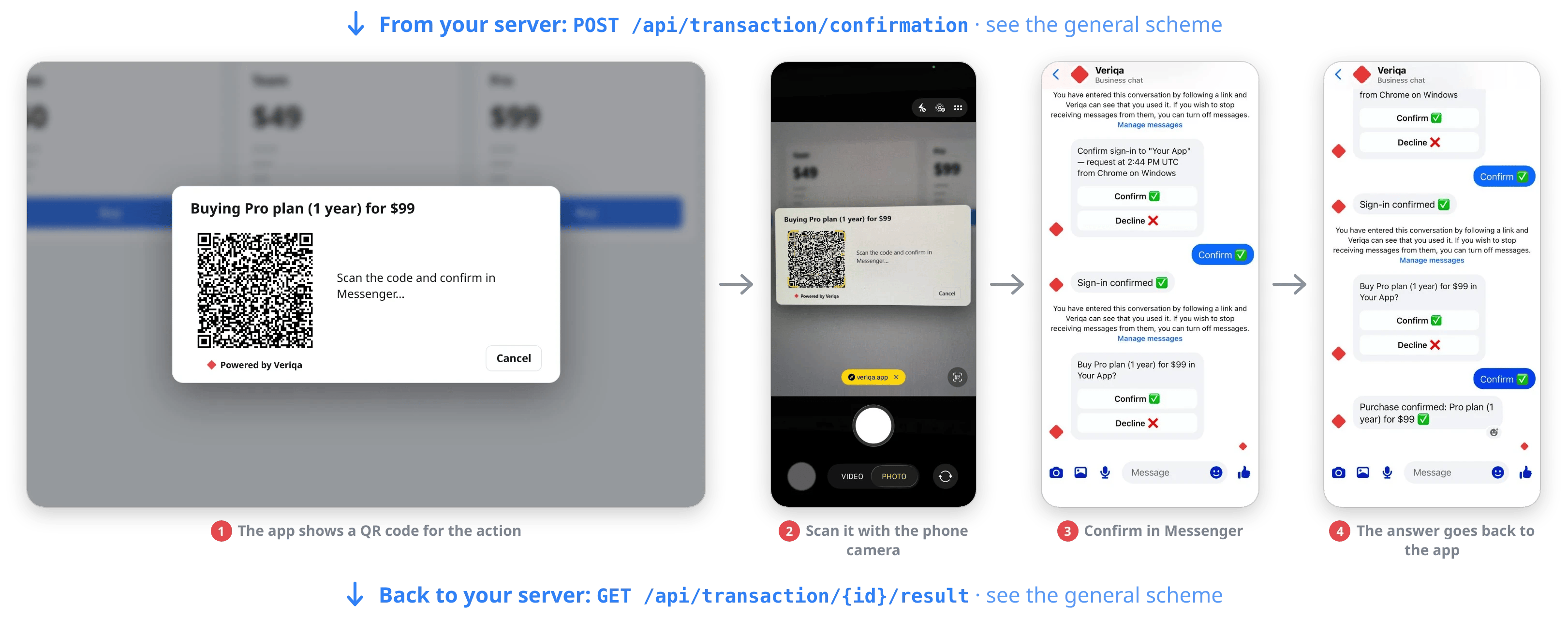
The app shows a QR code, and the user scans it with their phone camera and confirms the purchase in Messenger.
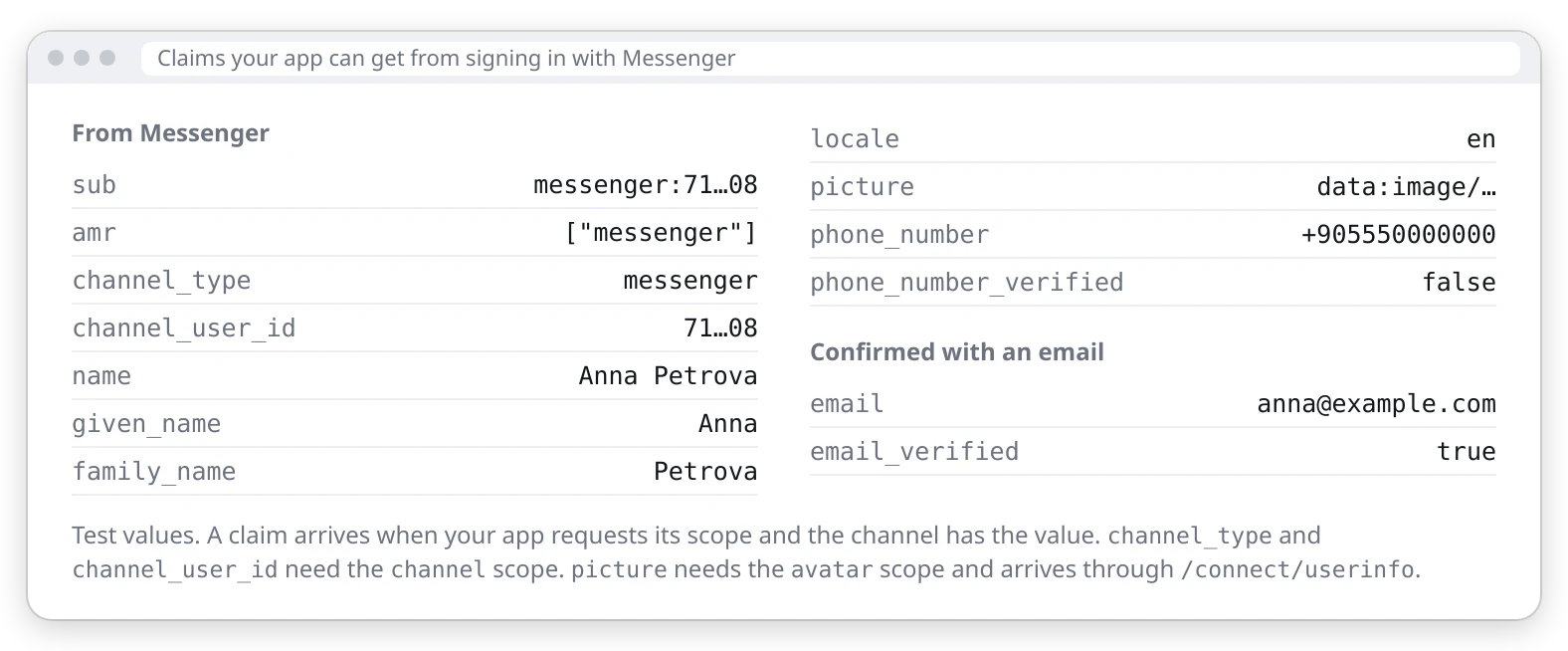
Claims your app can get
Signing in on a computer
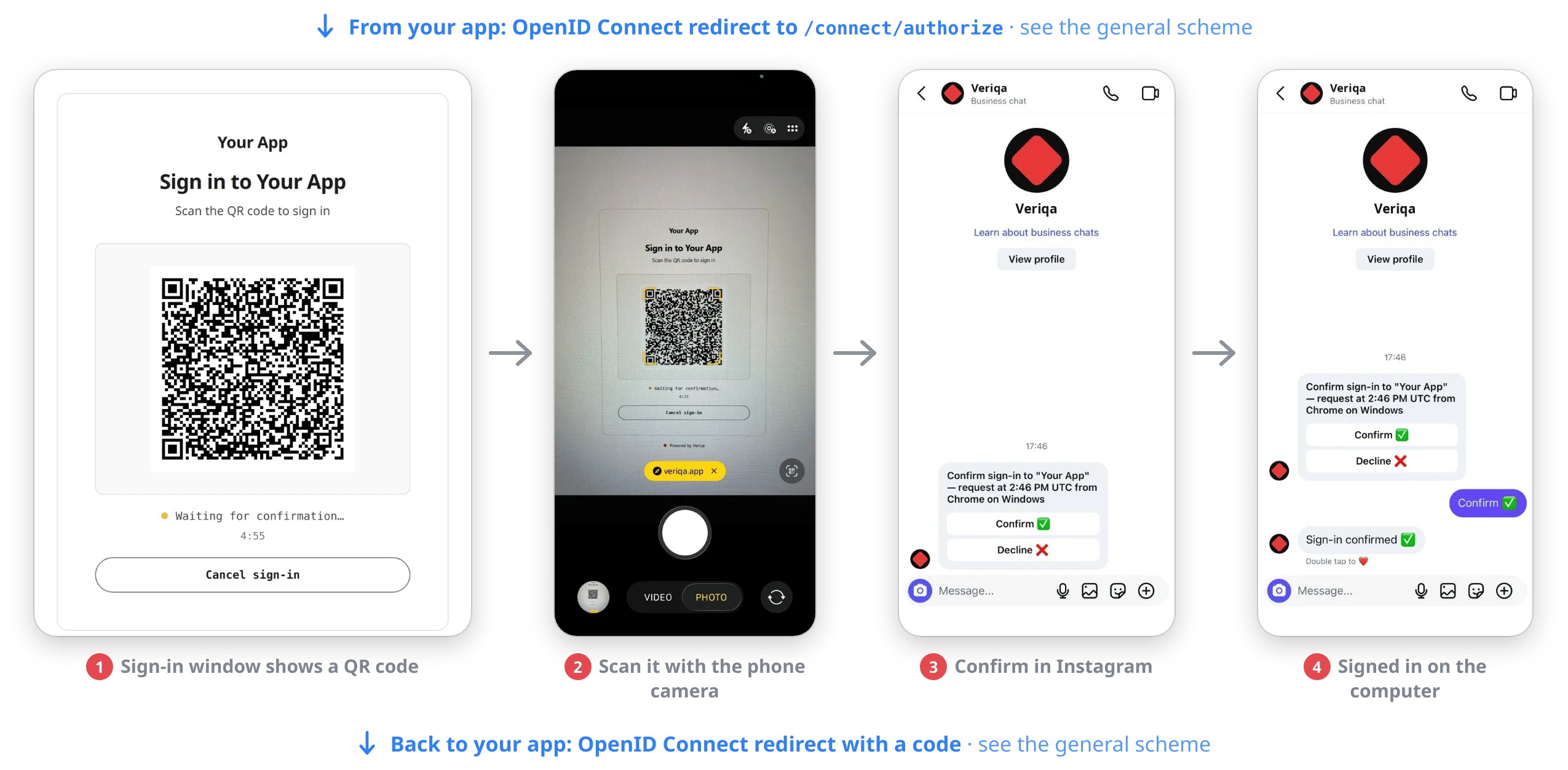
The user scans the QR code with their phone camera and confirms in the Instagram chat.
Signing in on a phone
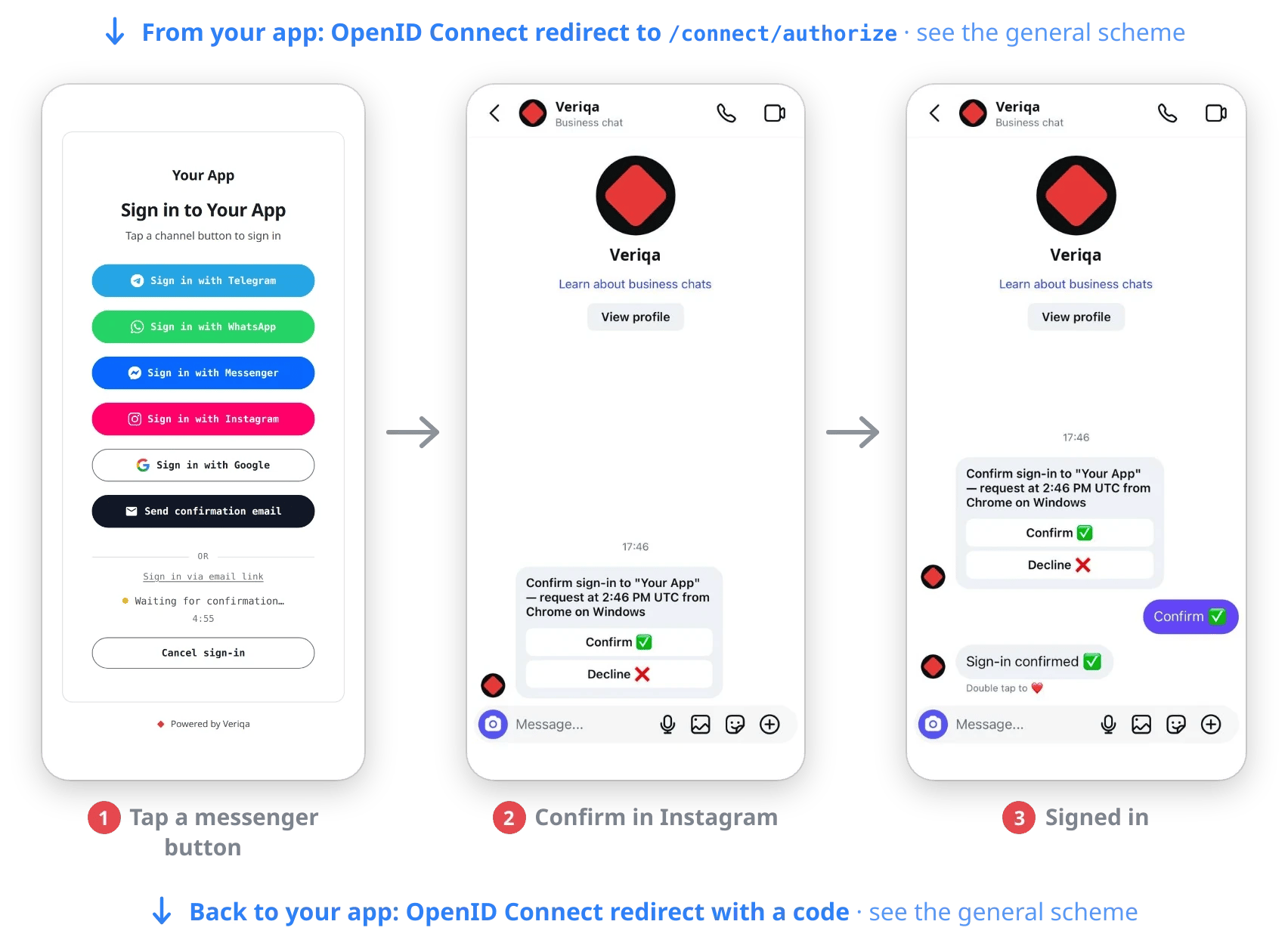
The user taps "Sign in with Instagram" and confirms in the Instagram chat.
Step-up: confirming an action
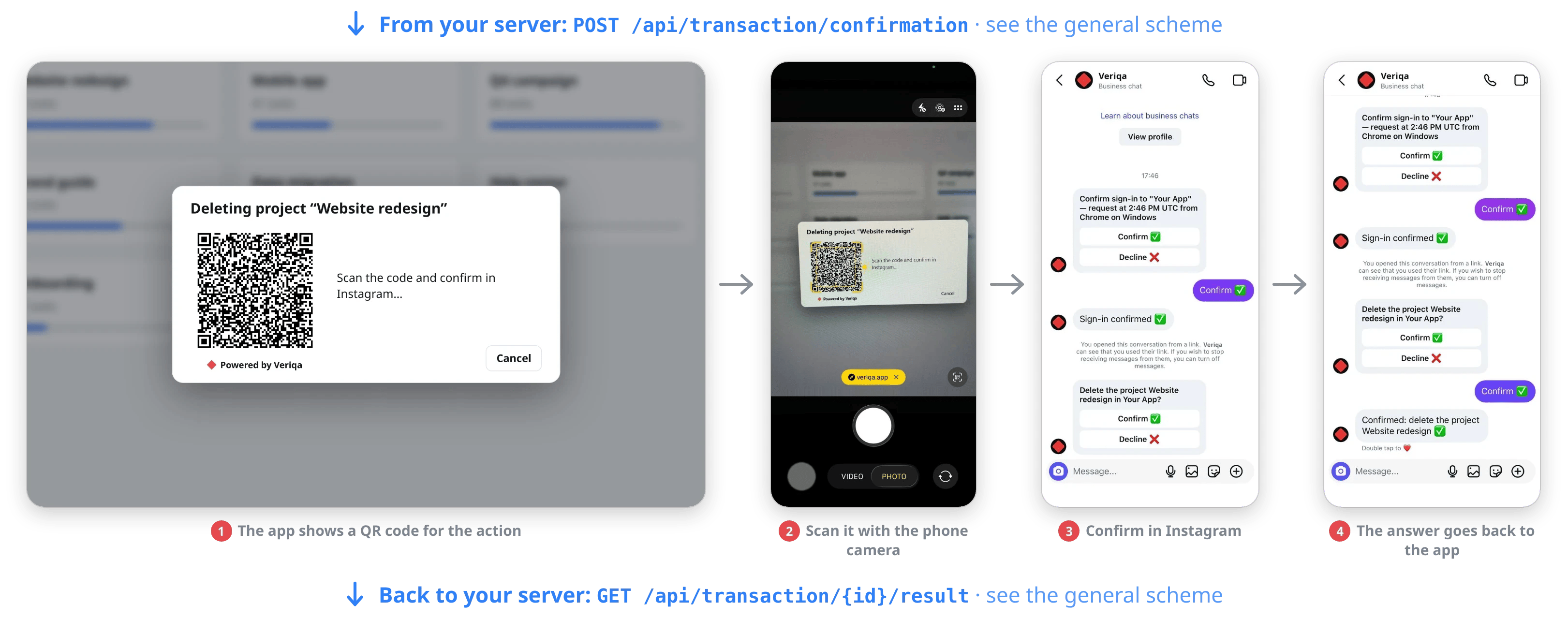
The app shows a QR code, and the user scans it with their phone camera and confirms the deletion in Instagram.
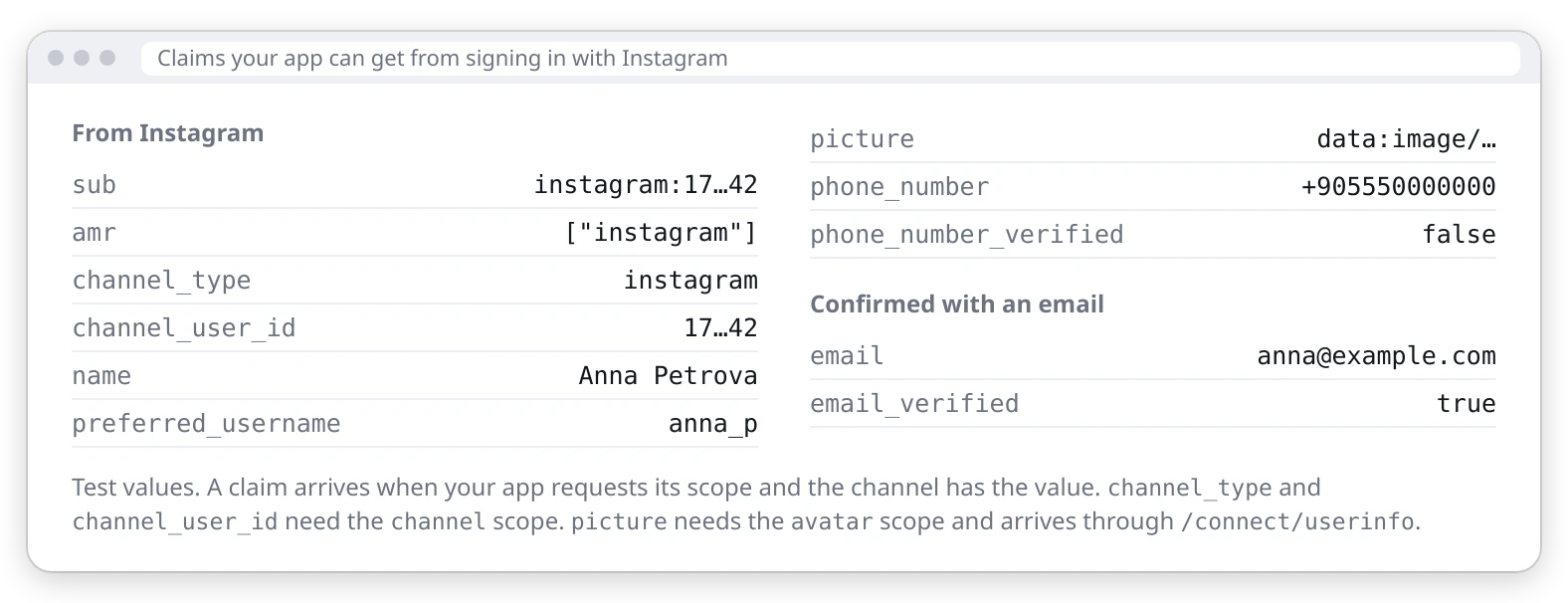
Claims your app can get
Signing in on a computer
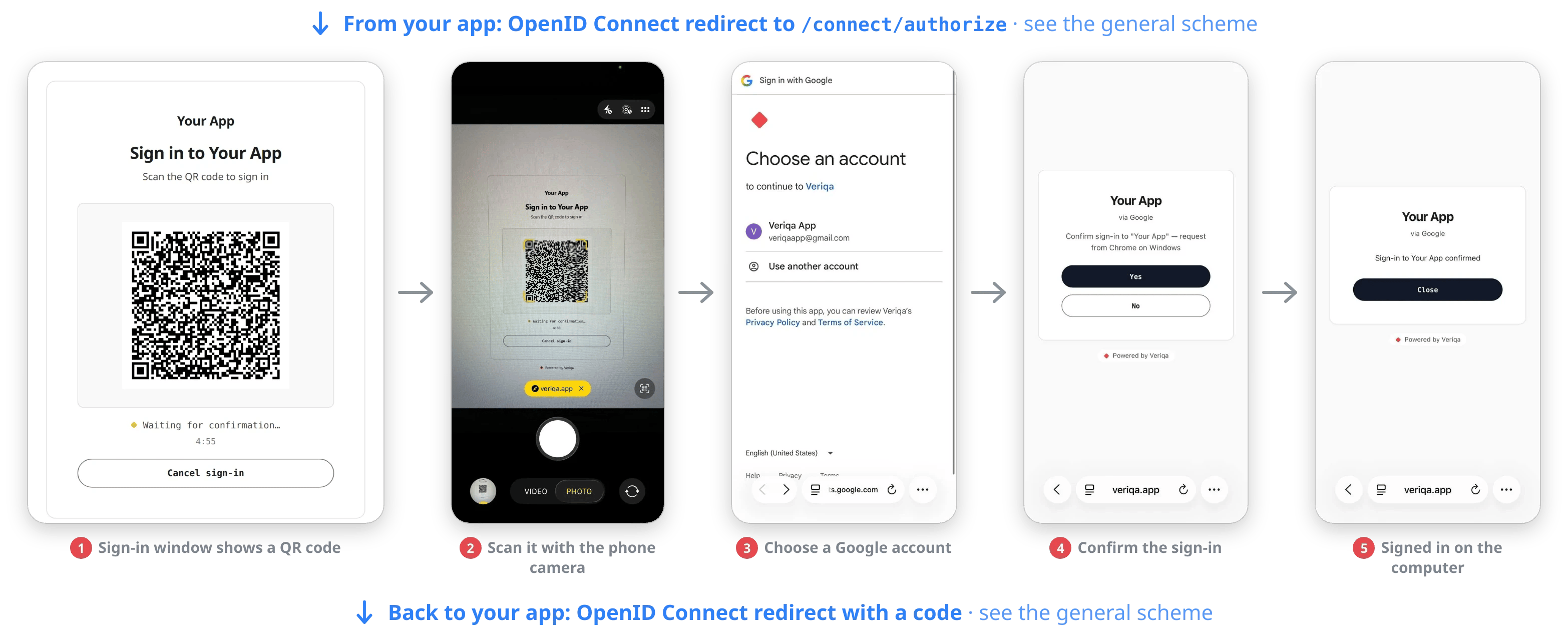
The user scans the QR code with their phone camera, picks a Google account and taps Yes on the confirmation page.
Signing in on a phone
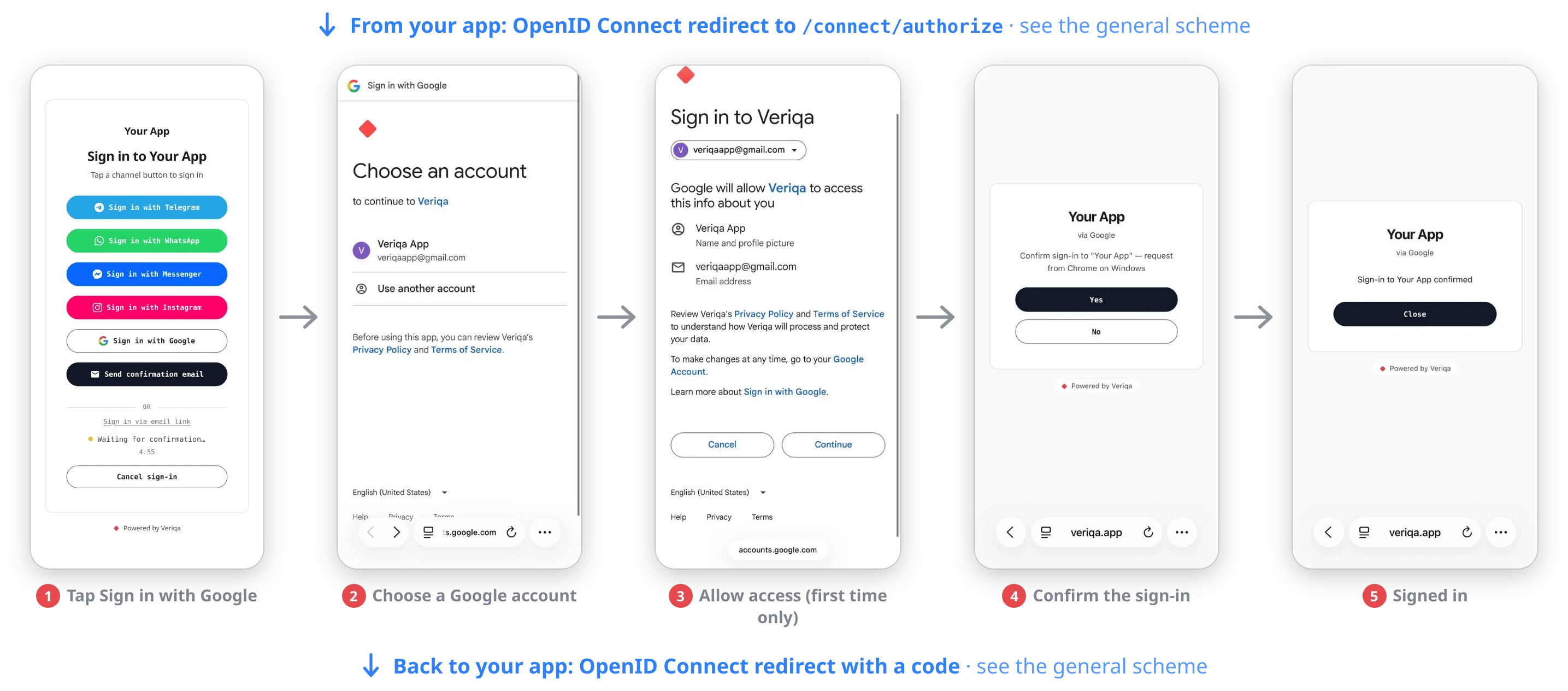
The user taps "Sign in with Google", picks an account and taps Yes on the confirmation page. Google asks for consent only on the first sign-in.
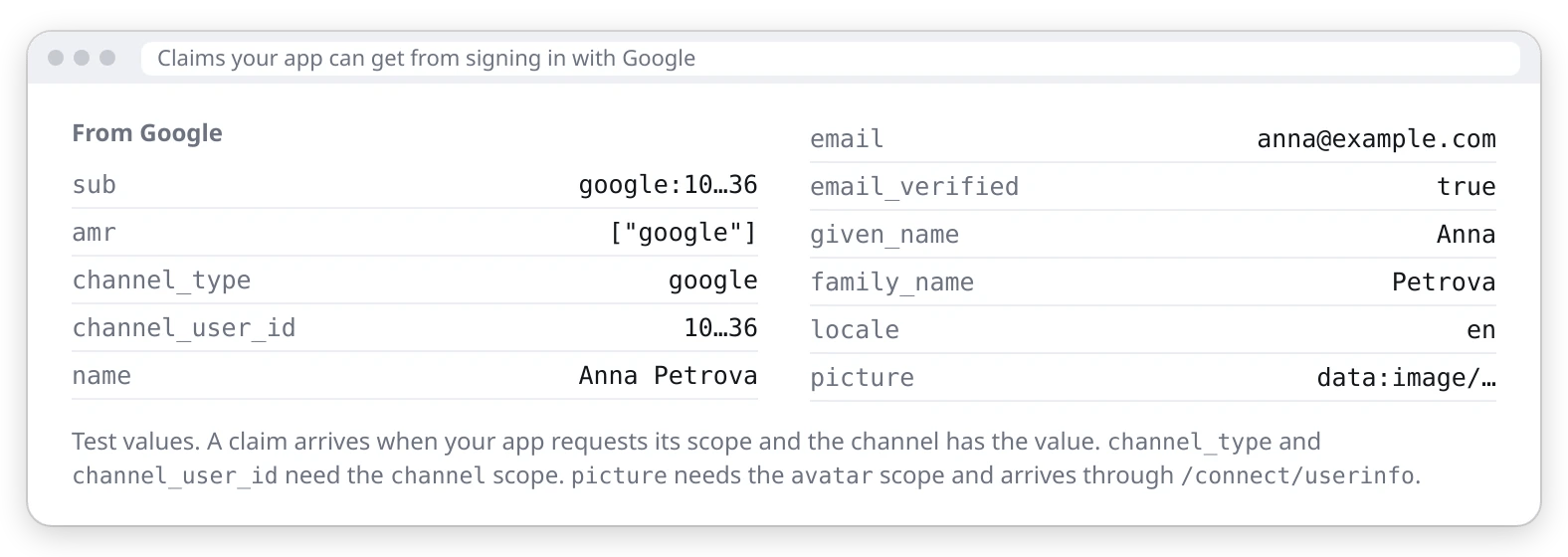
Claims your app can get
Signing in on a computer
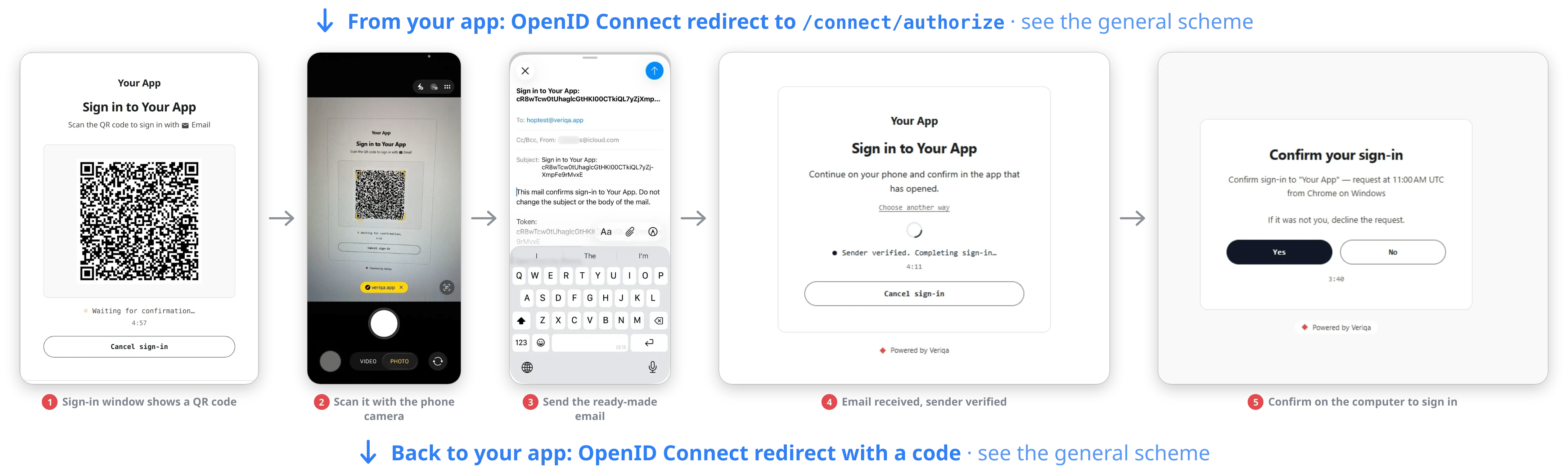
The user scans the QR code with their phone camera, sends the ready-made email and confirms the sign-in on the computer.
Signing in on a phone
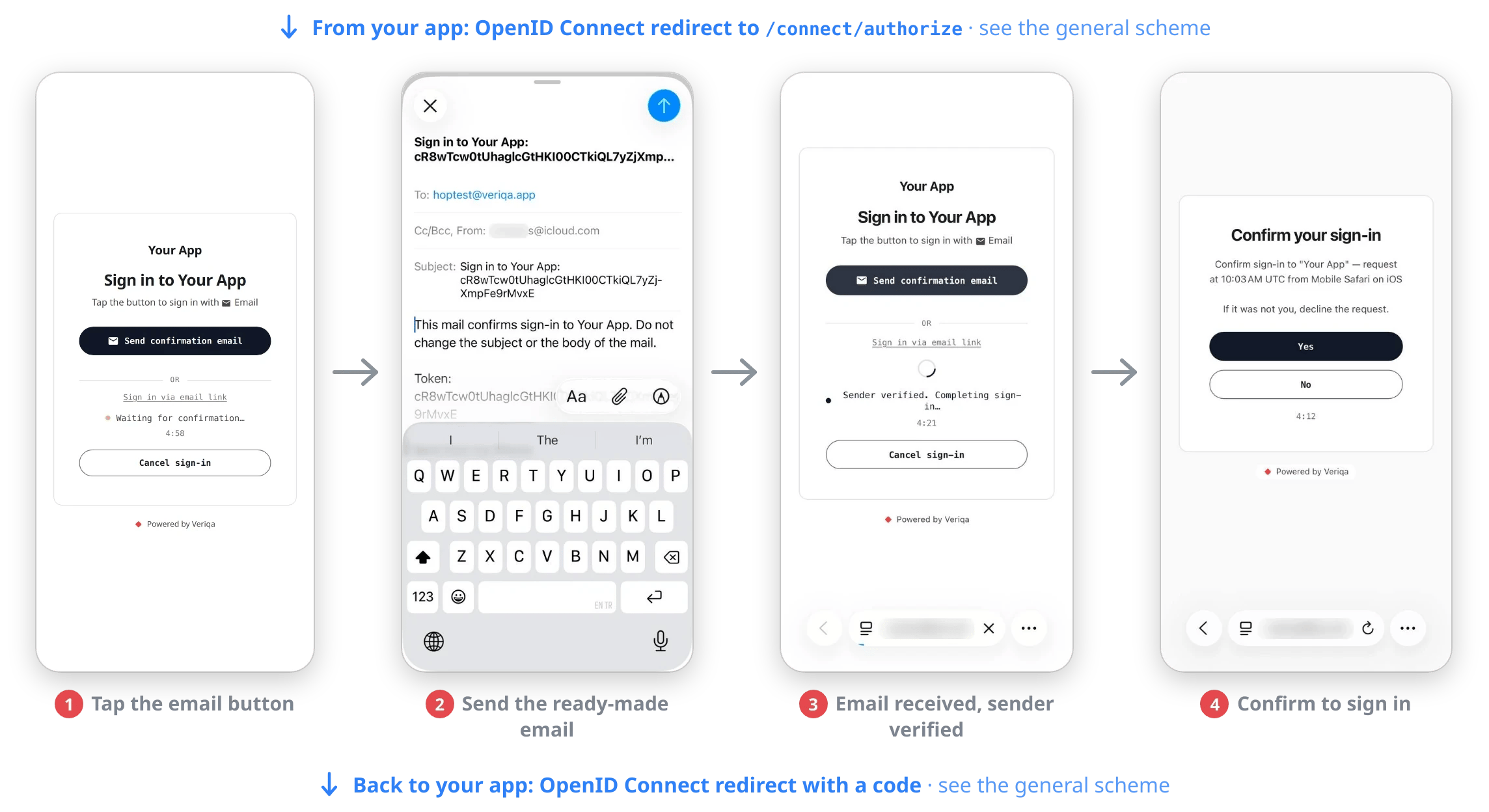
The user taps "Send confirmation email", sends the ready-made email and taps Yes on the confirmation page.
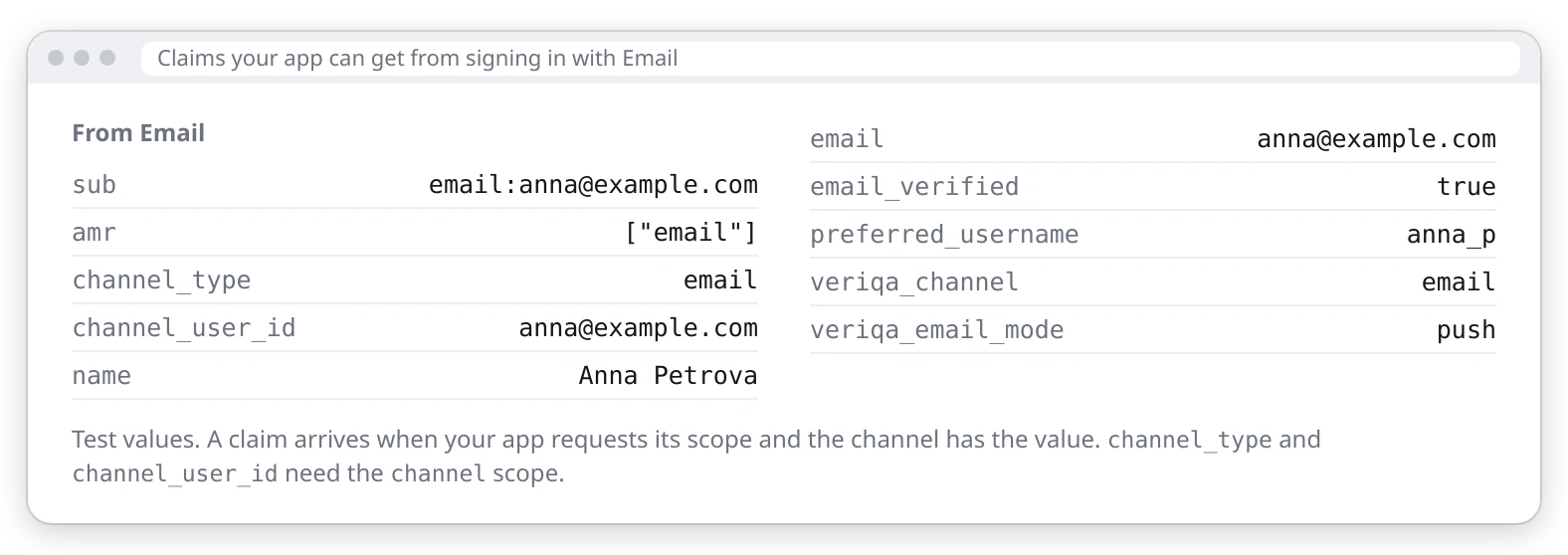
Claims your app can get