General scheme

A sign-in starts in your app: it sends the browser to the sign-in page with a standard OpenID Connect redirect. The user confirms in a channel, and the browser returns to your app with a code that your app exchanges for tokens.
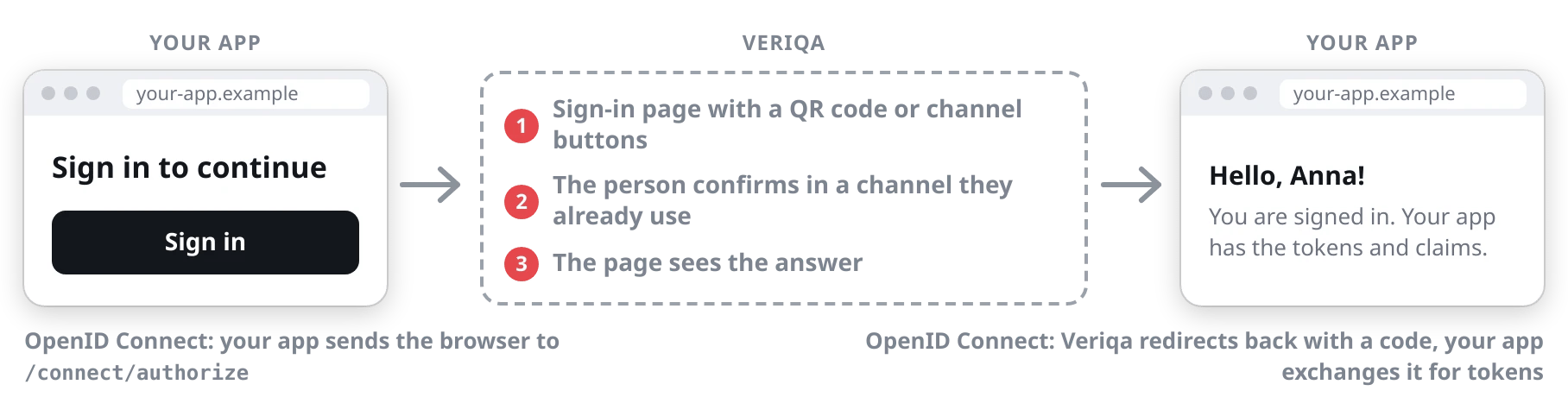
Signing in through Veriqa: your app sends the browser to the sign-in page by an OpenID Connect redirect, the person confirms in a channel, and Veriqa redirects back so your app can exchange the code for tokens.
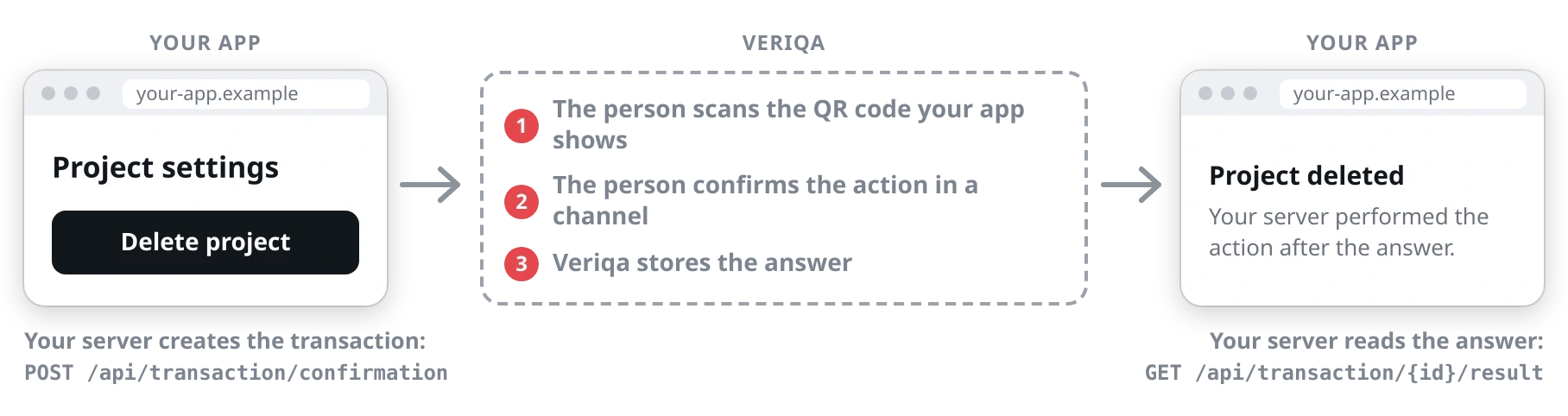
An action confirmation starts on your server: it creates a transaction through the Veriqa API. The user confirms in a channel, and your server reads the answer and performs the action. The browser is not redirected.
Confirming an action through Veriqa: your server creates the transaction, the person scans the QR code your app shows and confirms in a channel, and your server reads the answer and performs the action.
See Basic scenarios.

Signing in on a computer

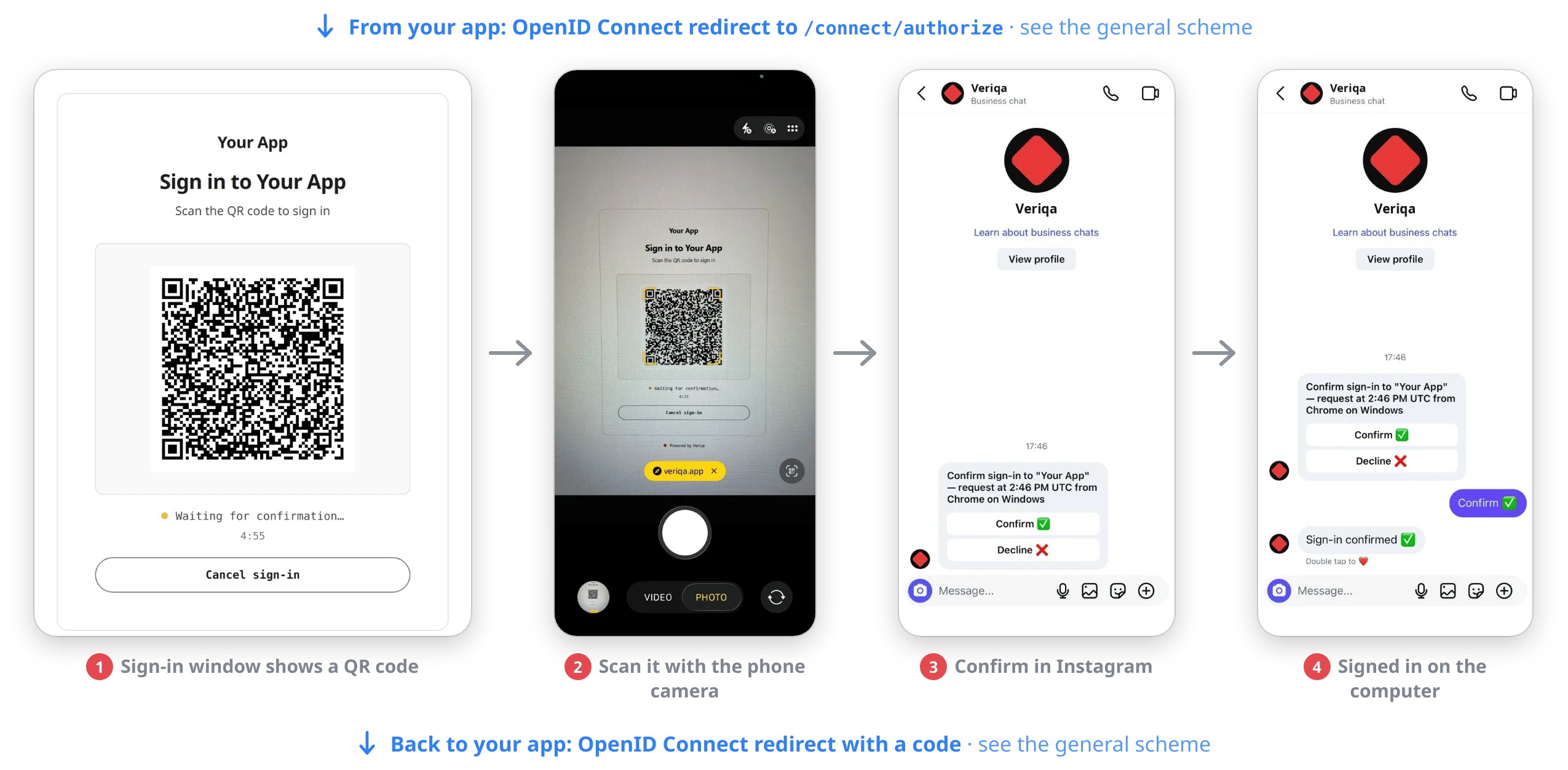
Signing in on a computer with Instagram: the sign-in window shows a QR code, the phone camera scans it, the user taps Confirm in the Instagram chat, and the chat replies "Sign-in confirmed".

The user scans the QR code with their phone camera and confirms in the Instagram chat.

Signing in on a phone
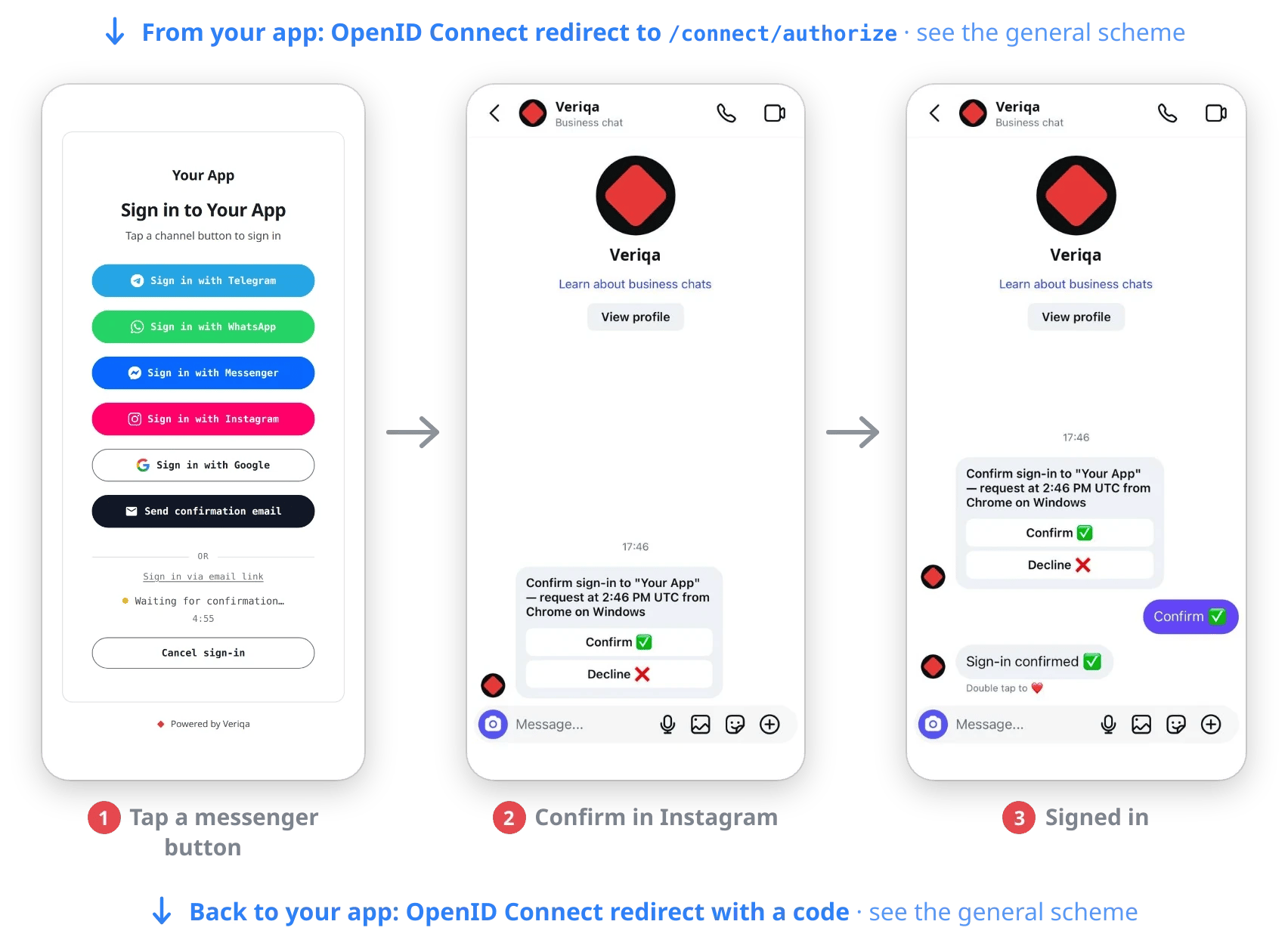
Signing in on a phone: the user taps "Sign in with Instagram", confirms in the Instagram chat, and the chat replies "Sign-in confirmed".

The user taps "Sign in with Instagram" and confirms in the Instagram chat.

Step-up: confirming an action
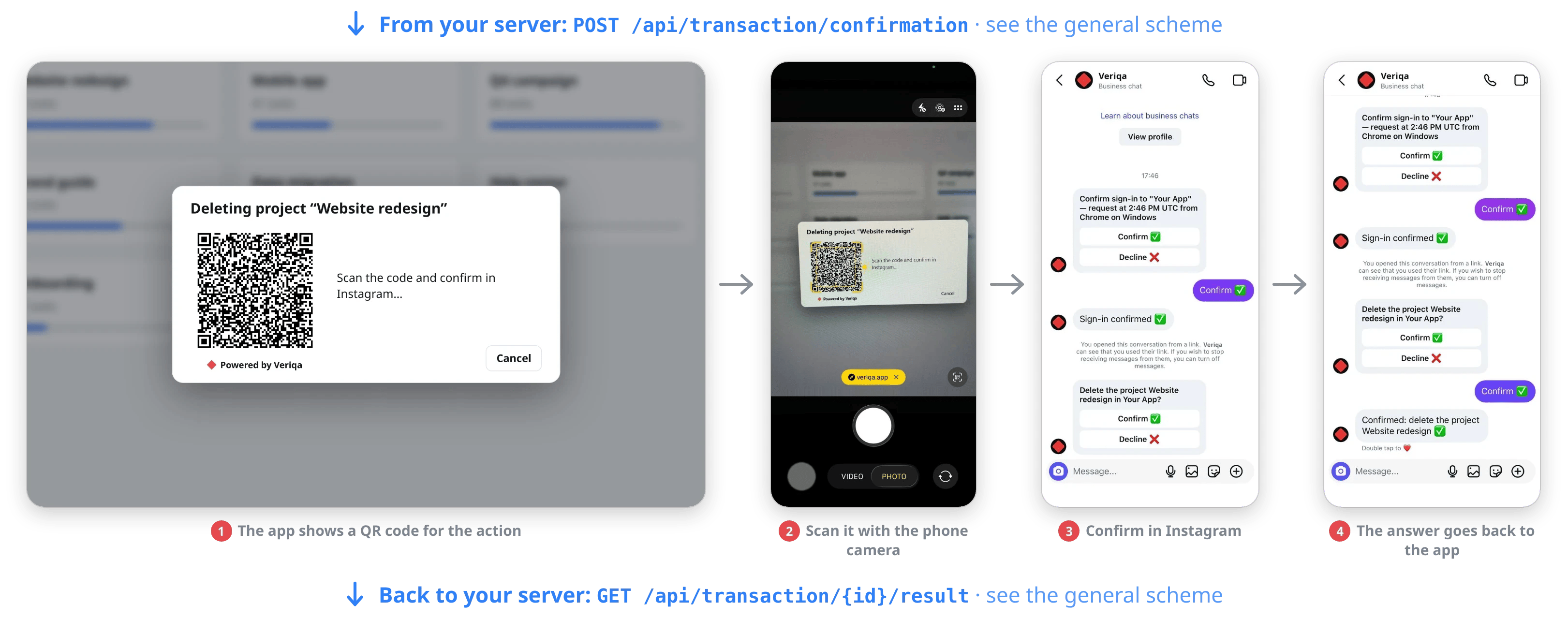
Confirming an action: the app shows a QR code for deleting a project, the phone camera scans it, the user confirms in Instagram, and the chat replies "Confirmed".

The app shows a QR code, and the user scans it with their phone camera and confirms the deletion in Instagram.

Claims your app can get
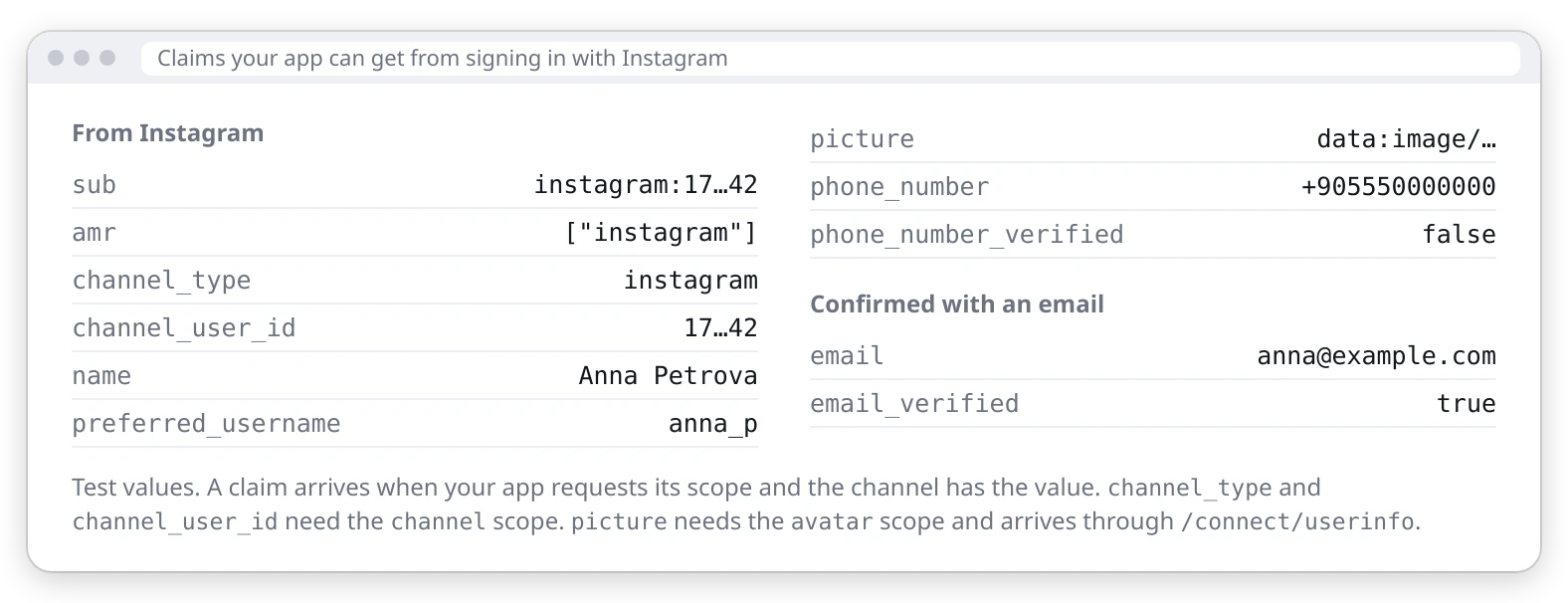
Claims your app can get from signing in with Instagram: sub, amr, channel_type, channel_user_id, name, preferred_username, picture, phone_number, phone_number_verified false, and email with email_verified after an email confirmation.